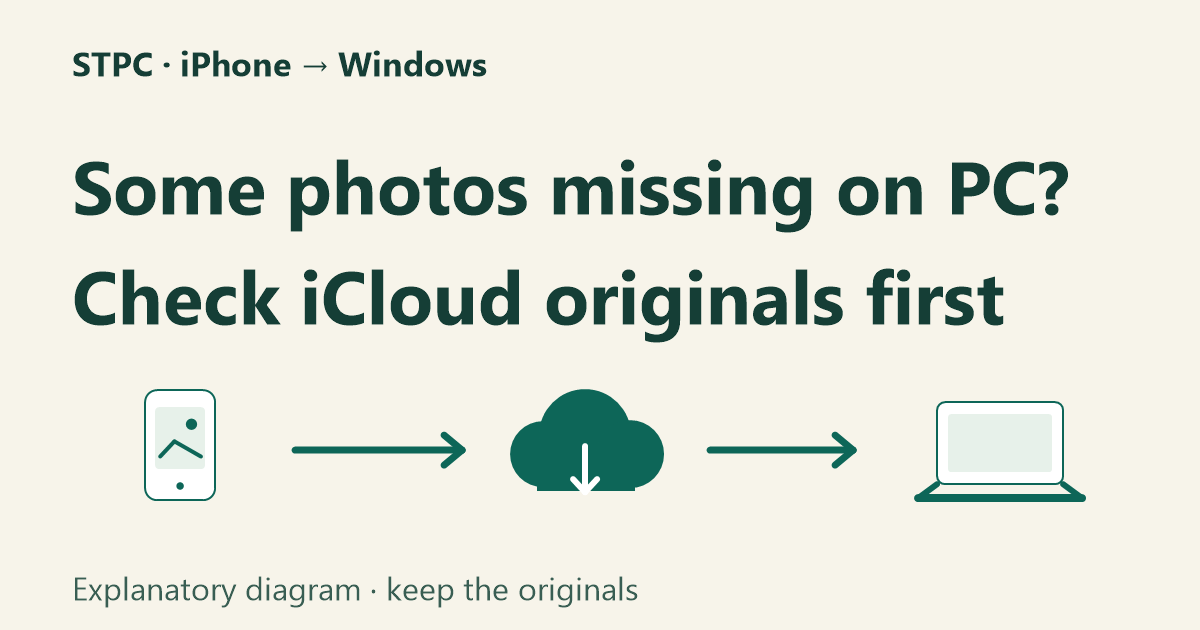
Your iPhone appears on your PC, but the import screen shows only some of your photos. Before changing drivers or deleting files, check whether the missing originals are stored in iCloud. With optimized storage, a picture can appear on the phone even when its full-resolution original is not stored locally. This is one possible explanation, not a diagnosis of every missing-photo problem. [1, 2]
1. Match the symptom first
– No iPhone appears: start with an unlocked phone, a data-capable USB cable, and another USB port. Follow Apple’s connection guide if it still is not recognized. [3]
– The phone appears, but some photos are absent: continue below.
– Files arrived but will not open: that is a different symptom. Do not assume the originals are lost or corrupt solely because a preview fails.
Keep the originals during troubleshooting. Use your own trusted PC, and check that it has space for the copies.

2. If you already use iCloud Photos, try a small web download
This route can help when your iPhone lacks room for the full library. It requires the missing items to exist in your iCloud Photos library; it does not recover pictures that were never uploaded.
1) Open https://www.icloud.com/photos on your PC and sign in to your Apple Account.
2) Locate a few missing items and select them. Ctrl lets you select multiple items.
3) Use Download. For a format choice, open More Download Options: Unmodified Originals preserves the captured/imported format; Most Compatible offers JPEG or MP4/H.264. Apple specifies a maximum of 1,000 selected items per download. [4]
Start with a small sample rather than the entire library. Locate the downloaded files and check them before repeating with more items. Do not buy more cloud storage merely to try this route if the items are already available there.
3. If you prefer USB, get the originals onto the phone first
Apple requires full-resolution originals on the iPhone before importing iCloud Photos items to a PC. [1]
Open Settings → your name → iCloud → Photos. Look for Download and Keep Originals; some versions place it inside iPhone Storage. This can download much more than the few pictures you need, so check available phone storage first. Allow downloads to finish. If space is insufficient or the setting does not match your screen, use the web route for existing iCloud items rather than deleting photos to make room. [5]
For the transfer, Apple’s current instructions start with the Apple Devices app from Microsoft Store. Connect and unlock the iPhone. Approve Trust or Allow only for a computer you trust. Then open Microsoft Photos, choose Import, select your device, and choose the items and destination. Try a small selection first. [1, 2]
4. Don’t confuse two “originals” settings
Download and Keep Originals concerns local storage. The separate Keep Originals transfer option prevents USB format conversion; it does not convert HEIC pictures to JPEG. Changing Camera → Formats → Most Compatible affects new captures, not the existing library. [6]

5. Verify the copies
Open the specific pictures that were missing and play the videos. Compare filenames, dates, dimensions, and visible content where available. Item counts alone are not proof of a complete copy.
For an independent archive, keep downloaded copies outside the synchronized iCloud Photos folder and include them in a separate backup. A pinned iCloud photo can still be removed from the PC when it is deleted elsewhere in the synced library. Do not delete the source photos as part of this troubleshooting guide. [7]
Still stuck? Record the exact error, Windows and iOS versions, whether the iPhone is recognized, and whether the missing items appear on iCloud.com. Use those details with Apple or Microsoft support. This guide does not require disabling security protections, resetting privacy settings, or installing a third-party transfer utility.
Sources, checked 2026-10-15
[1] Apple: Transfer photos to a PC — https://support.apple.com/en-us/120267
[2] Microsoft: Import photos and videos — https://support.microsoft.com/en-us/windows/apps/photos/import-photos-and-videos-from-phone-to-pc
[3] Apple: Computer does not recognize iPhone — https://support.apple.com/en-us/108643
[4] Apple: Download iCloud photos — https://support.apple.com/en-us/111762
[5] Apple: Archive or copy iCloud information — https://support.apple.com/en-us/108306?trk=article-ssr-frontend-pulse_little-text-block
[6] Apple: HEIF and HEVC media — https://support.apple.com/en-us/116944
[7] Apple: Keep photos downloaded in iCloud for Windows — https://support.apple.com/en-au/guide/icloud-windows/icw524278130/icloud
답글 남기기